There's a particular kind of frustration I didn't expect neuropathy to bring, and it's a small one that turns out to matter a lot: my own phone fights me on bad days. I tap, and nothing happens. I tap again, harder, and it opens the wrong thing. I try to type a text to my daughter and it comes out as gibberish. For a device that's supposed to be my lifeline — the thing that keeps me connected when pain keeps me home — that's no small thing.
So I went looking for every fix, tested them on myself, and pulled the ones that actually work into this guide. None of it requires being “techy.” Most of it is settings already built into your phone that nobody ever points you to. Let's make your phone go back to being a helper instead of an opponent.
Why the Phone Fights Back: Two Different Problems
It helps to know that “the phone won't cooperate” is really two separate problems, because they have different fixes. The first is registration: a touchscreen reads a faint electrical signal from your skin, and numb, dry, cold, or callused fingertips give it a weak signal — so your taps don't take, or “ghost” into double presses. The second is control: when you can't fully feel the glass, you overshoot the button you wanted, brush two things at once, or can't tell how hard you're pressing, especially if your hands are also clumsy or shaky.
Registration and control — each has its own fix
Numb, dry, cold fingertips give the screen a weak signal (registration). Not feeling the glass makes you overshoot and double-tap (control). Spot which one is your bigger battle and lean on those fixes hardest.
Almost every tip below targets one of those two. As you read, notice which one is your bigger problem — for many people with neuropathy in the hands it's both — and lean hardest on the fixes for that one.
Make Your Finger Register Better
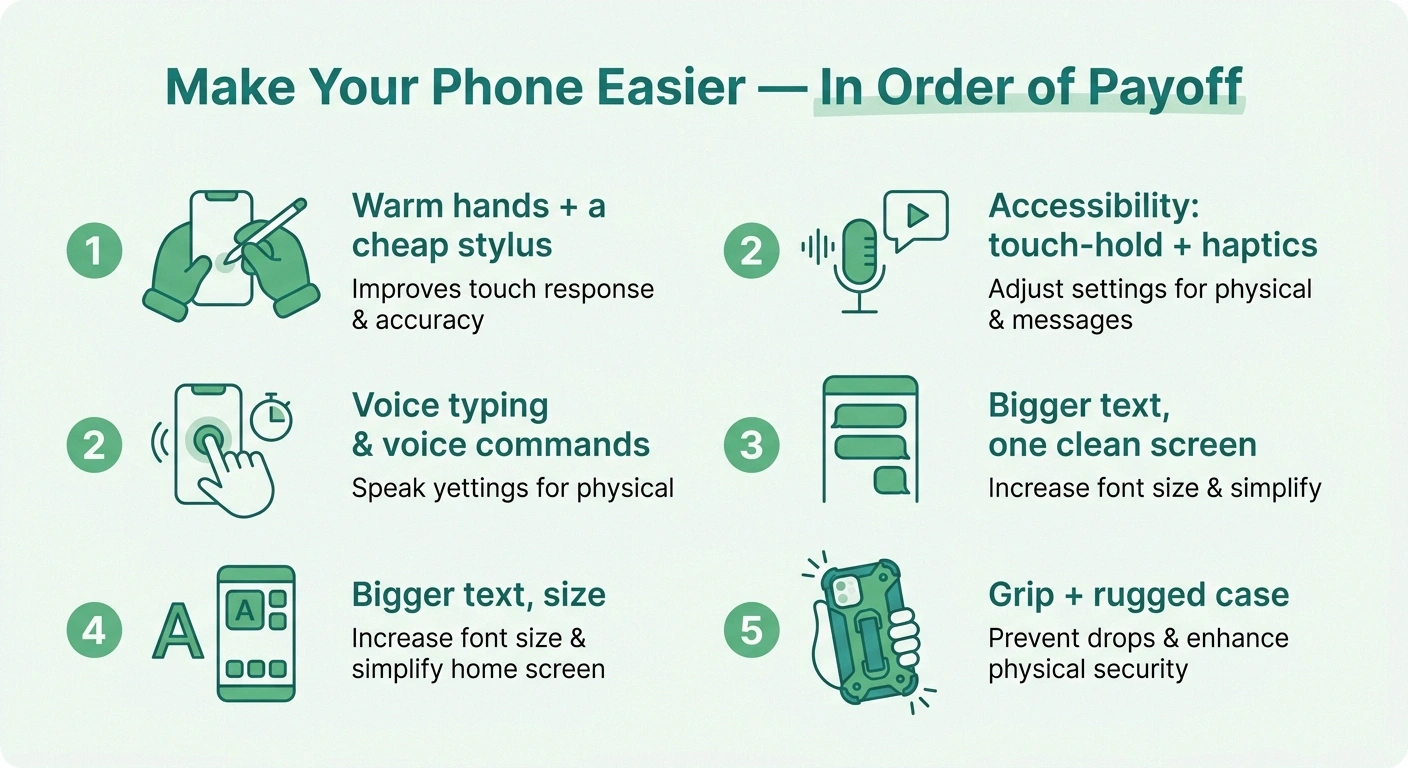
Start here, because these take thirty seconds and solve the registration problem directly. If your hands are cold, warm them first — cold fingers register far worse, and cold makes nerve symptoms worse anyway. A light dab of water-based hand lotion (let it absorb, don't leave them slick) noticeably improves the signal the screen reads; dry, callused fingertips are one of the most common reasons taps don't land.
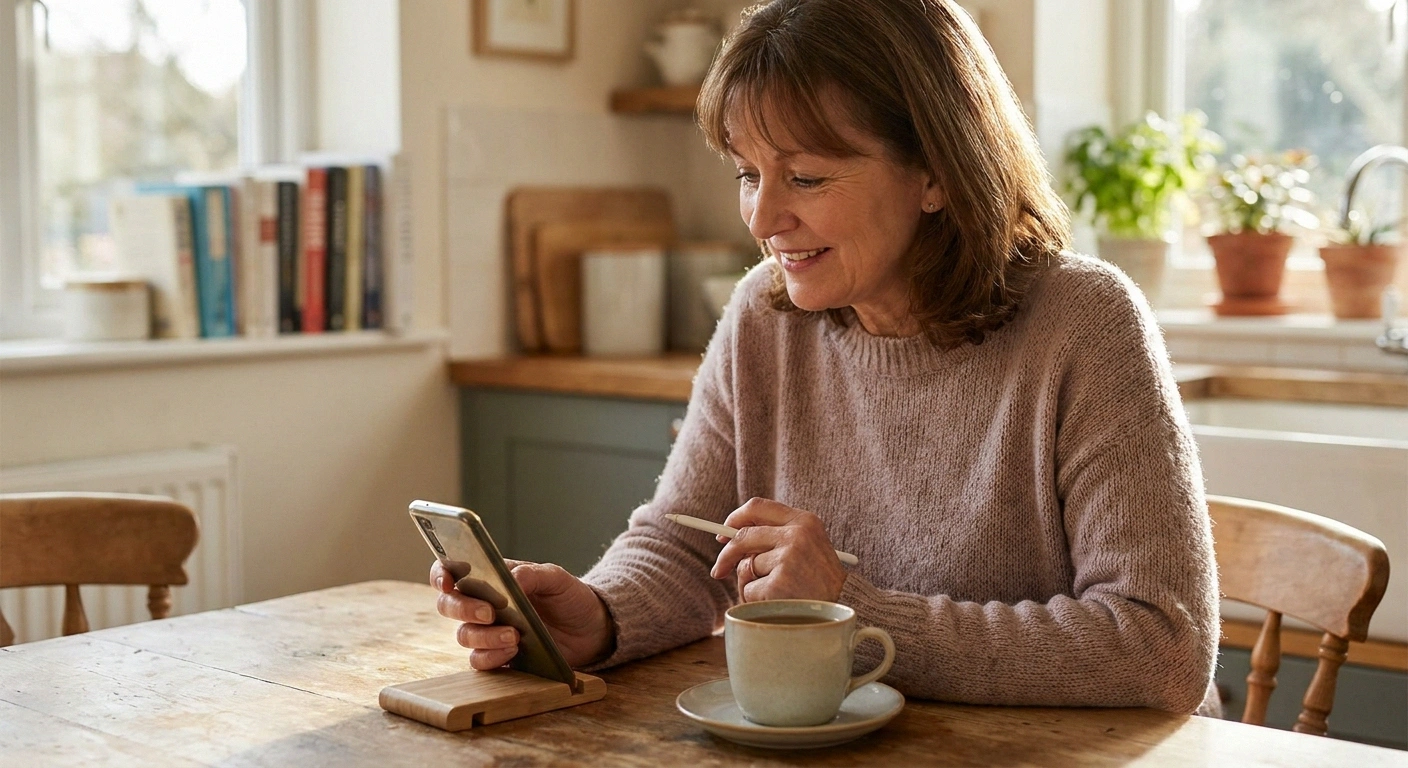
Next, try a different part of your hand. The pad of the index finger isn't always your most sensitive spot with neuropathy — the side of a fingertip, or even a knuckle, sometimes works better, and it's worth a minute of experimenting to find your reliable “tapping finger.” The single biggest upgrade, though, is a capacitive stylus — the inexpensive rubber-tipped kind made for touchscreens. It bypasses your numb fingertip entirely and gives you a consistent, controllable point of contact. If numb fingertips are your main battle, a stylus is the one thing I'd buy today.
Let Your Voice Do the Work

Here is the mindset shift that helped me most: the best way to beat a touchscreen is often to touch it less. Every modern phone can type from your voice and run on spoken commands, and for hands that don't cooperate this is transformative, not a gimmick.
The best way to beat a touchscreen is to touch it less. Voice typing and a few voice-assistant commands (“call my daughter,” “remind me to take my medication”) let you run the phone almost hands-free. On a bad day, voice isn't a fallback — it's the main way to use the phone, and that's fine.
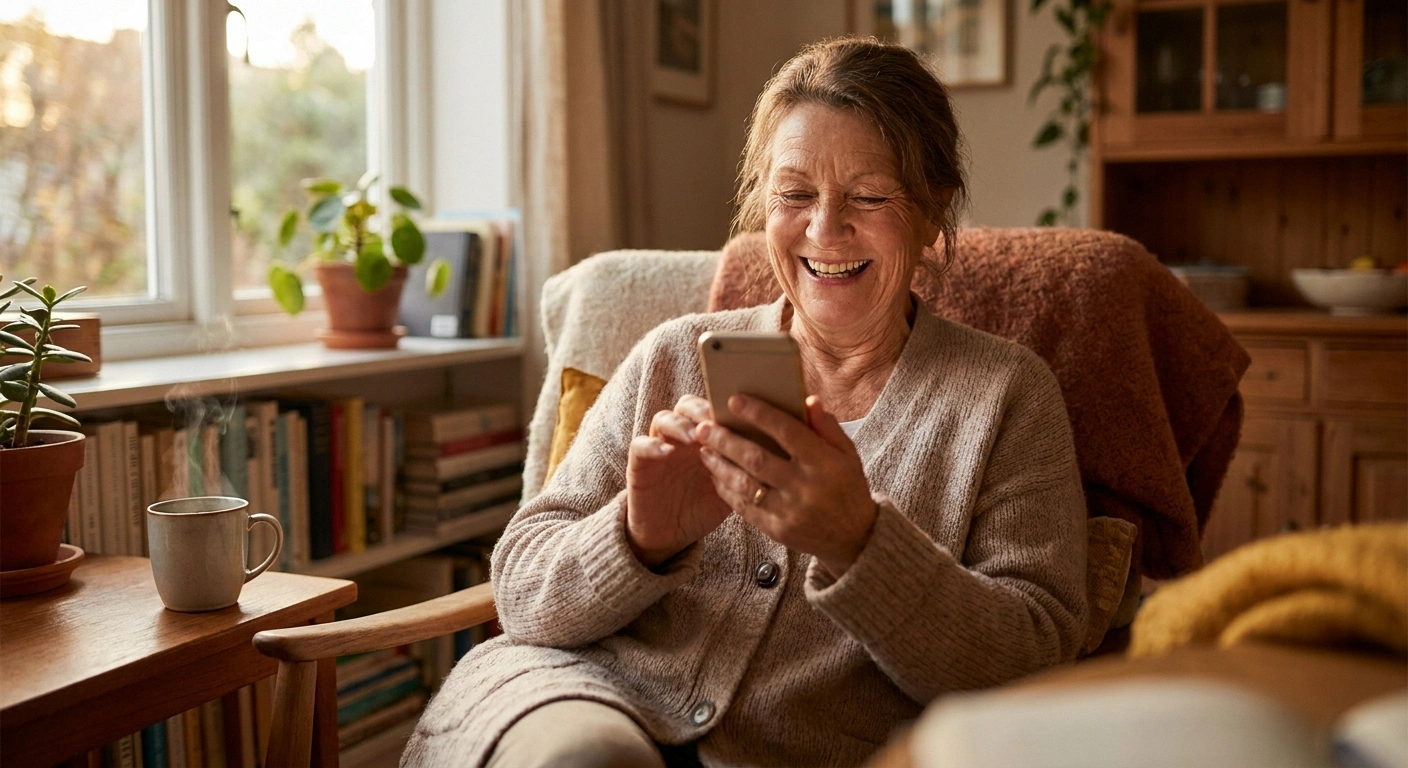
Turn on voice typing or dictation (it's a microphone icon on the keyboard, or a setting called Dictation) and just speak your texts, searches, and notes — the phone writes them. Use the built-in voice assistant for the things that take the most fiddly taps: “call my daughter,” “set a reminder for my medication,” “what's the weather.” You can place calls, send messages, and set reminders almost entirely hands-free. On a high-symptom day, when fine motor control is at its worst, voice isn't a fallback — it's the main way to use the phone, and there's no shame in that. It's the same principle as the workarounds in our guide to using a computer with neuropathy: change the input, not your hands.
Turn On the Accessibility Settings Nobody Tells You About
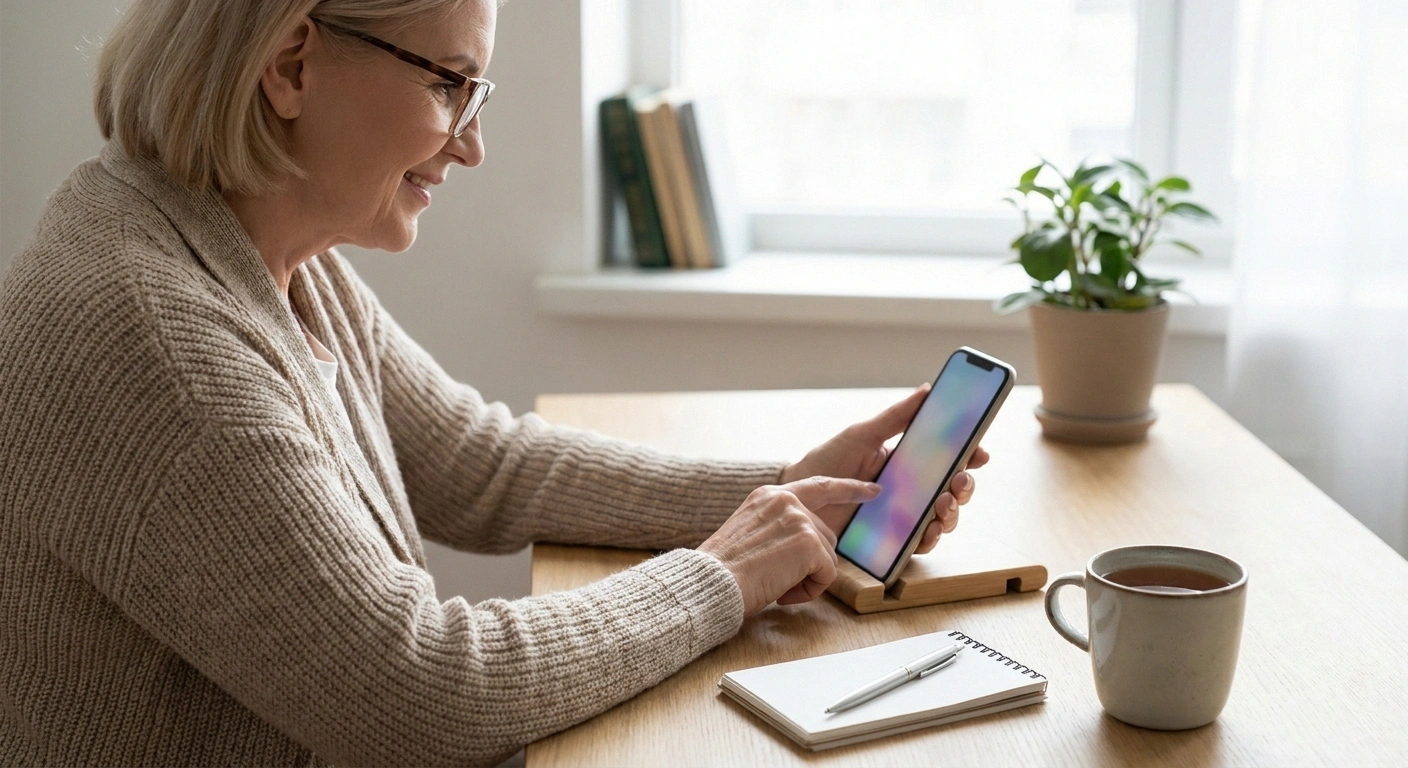
Every phone has an Accessibility menu in Settings built for exactly this, and it's criminal how few people are shown it. A few settings there directly fix the missed-and-doubled-tap problem. Look for a touch-and-hold or “touch accommodations” option that lets you set how long a press must last to count and tells the phone to ignore accidental repeat taps — this alone fixes a huge amount of the “it didn't take / it did it twice” frustration.
Ten Minutes in Accessibility Settings
Set touch-and-hold duration + ignore accidental repeat taps.
Turn on the on-screen assistive button for one-tap gestures.
Enable haptic/vibration feedback so a good tap is felt, not guessed.
Bump up text + icon size; turn on one-handed reach mode.
Also look for an on-screen assistive button (Apple calls it AssistiveTouch; Android has an Accessibility Button) that turns hard physical-button presses and gestures into one easy tap. Turn on vibration or haptic feedback too, so a successful press gives you a little buzz you can feel — that way you're not relying on fingertip sensation you may not have to know the tap worked. Spend ten minutes in that menu once; it pays back every day. Our overview of assistive technology for neuropathy covers more of these built-in tools.
Make the Targets Bigger and Forgiving
If control is your problem — overshooting and hitting the wrong thing — make everything bigger and harder to miss. Increase the display and text size and use the larger icon or “big” home-screen layout so buttons are physically wider targets. Move the apps you actually use into one simple, uncluttered screen with space between them, and delete or hide the rest; a crowded screen is a minefield for an imprecise tap.
Move the apps you actually use onto one uncluttered home screen with space between them and hide the rest. A crowded screen is a minefield for an imprecise tap — a sparse one is forgiving.
On the keyboard specifically: switch to a larger key layout, turn on key-press vibration, and lean on autocorrect and predictive text — or try swipe-typing, where you slide one finger across letters instead of making dozens of precise taps. Turn on the one-handed or “reachability” mode so the top of the screen drops down within easy reach instead of forcing a strained stretch. Each of these is small; together they turn a frustrating screen into a forgiving one.
Stop Fighting to Hold It
A lot of phone frustration isn't the tapping at all — it's the grip. Holding a slab of glass steady with weak or numb hands is its own workout, and a tense grip makes everything else clumsier. Add a finger loop or a grip on the back (the popular collapsible button kind), or a strap, so the phone hangs on your hand and you don't have to clamp down to keep from dropping it.
With a Numb Grip, Drops Aren't an “If”
A finger loop or back grip means you don't have to clamp down to keep from dropping the phone, and a rugged case turns an inevitable drop into a non-event. A phone you're not afraid of dropping is a phone you'll actually use freely.
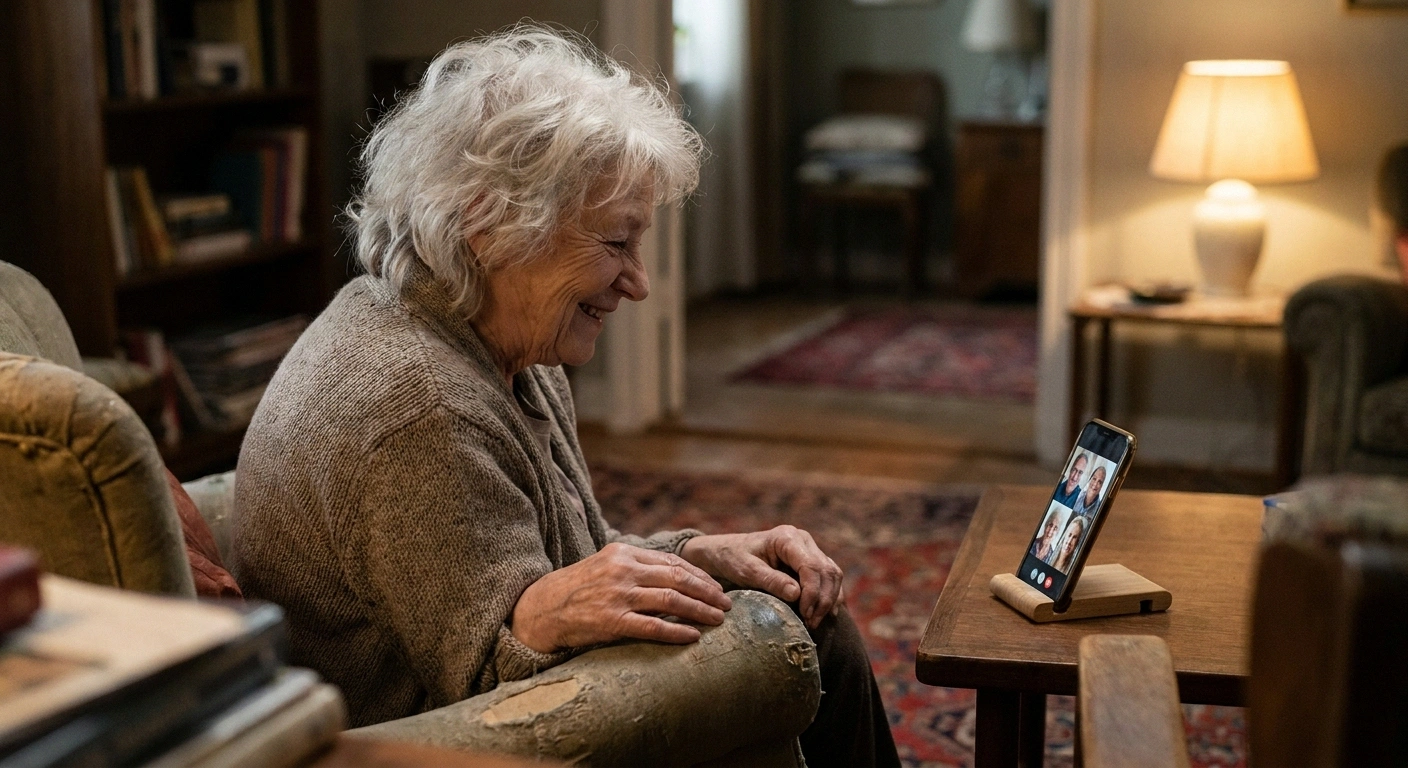
For anything longer than a quick check, set the phone in a small stand and use it hands-free — propped on the table for a video call with the grandkids, you can dictate and tap without holding anything at all. And put it in a rugged case: with a numb grip, drops aren't an “if,” and a protected phone you're not afraid of dropping is a phone you'll actually use freely. These tie into the same adaptive-tool thinking in our guides to getting dressed with neuropathy and building a home pain management toolkit.
Work With Your Good Hours
One last habit that's pure common sense but easy to forget: do the fiddly phone tasks during your better windows. Online banking, filling a form, anything that needs precision — do it seated, with warm hands, when your symptoms are lower, not one-handed and standing on a bad afternoon. Knowing your own pattern, the way our guide to neuropathy flare-ups describes, lets you schedule the demanding tasks into the calm hours.
And do one bit of setup now, while you're reading this and able: get your emergency call shortcut, medical ID, and fall-detection set up, and put your most important contacts one easy tap away. The phone is how you stay connected when neuropathy tries to shrink your world — and protecting against the isolation our piece on neuropathy and loneliness describes is reason enough to make this device work for you. Set it up easy now, while it's easy.
A Quick Setup Checklist
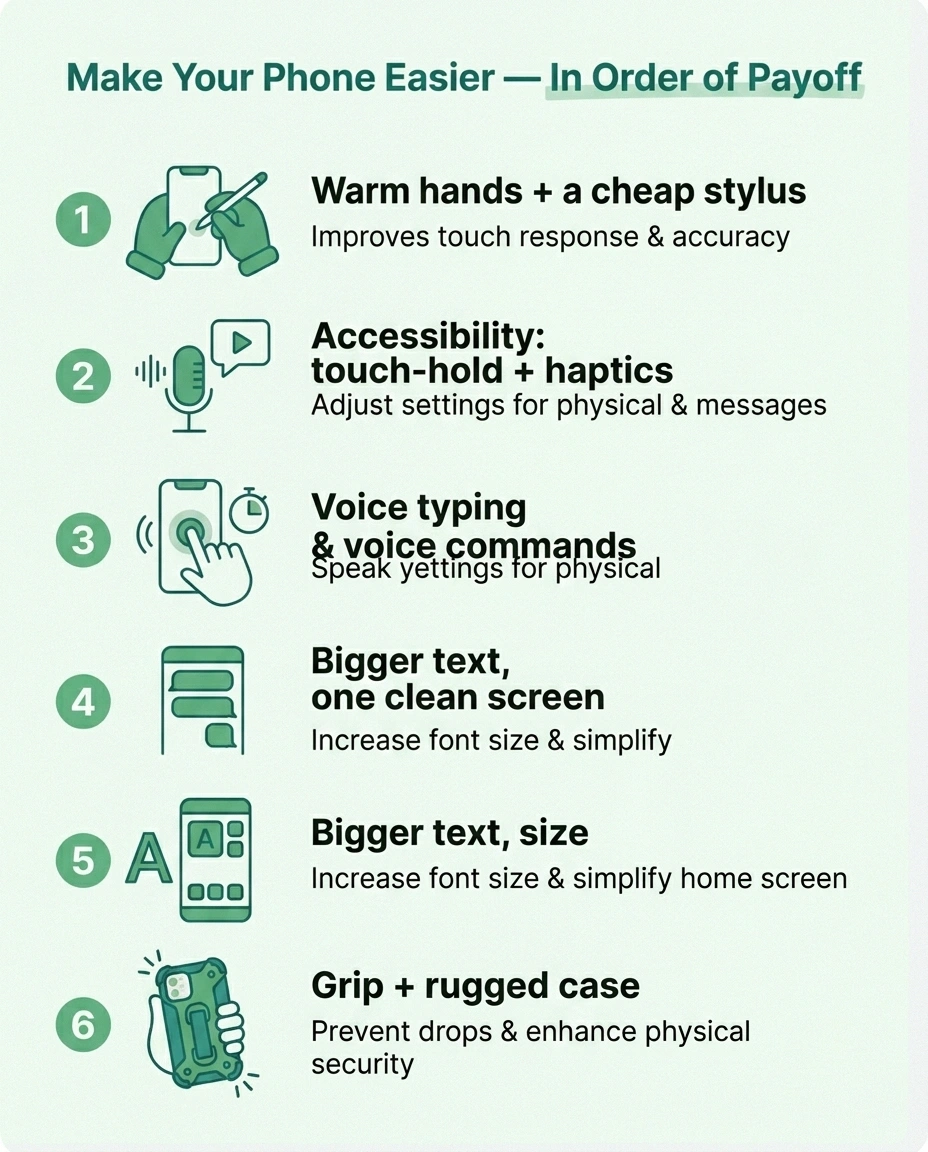
If you do nothing else, do these, roughly in order of payoff: warm and lightly moisturize your hands before use; buy a cheap capacitive stylus; turn on voice typing and learn three voice-assistant commands you'll actually use; open the Accessibility settings and enable touch-and-hold/ignore-repeat plus haptic feedback; bump up text and icon size and declutter one home screen; add a grip or loop and a rugged case; and schedule fiddly tasks for your good hours. None of it is hard, none of it is expensive, and together they hand you back a tool neuropathy had quietly taken.
Set it up easy now, while it's easy
Warm hands, a cheap stylus, voice typing, the right accessibility settings, bigger targets, a grip, and doing fiddly tasks in your good hours. None of it is hard or expensive — together it hands back a lifeline neuropathy had quietly taken.
Frequently Asked Questions
Why won't my touchscreen respond when my fingers are numb?
Touchscreens read a faint electrical signal from your skin, and numb, dry, cold, or callused fingertips produce a weaker signal, so taps may not register or may double up. Warming your hands, applying a light water-based lotion and letting it absorb, trying the side of a fingertip or a knuckle, or using an inexpensive capacitive stylus all improve how reliably the screen reads your touch. A stylus tends to help the most because it gives a consistent contact point that bypasses the numb fingertip.
What phone settings help most with neuropathy in the hands?
Open the Accessibility menu in Settings. The highest-value options are a touch-and-hold or touch accommodations setting that adjusts how long a press must last and ignores accidental repeat taps, an on-screen assistive button that simplifies gestures, and haptic or vibration feedback so a successful tap can be felt rather than relied on by sensation. Increasing text and icon size and enabling one-handed reach mode also make targets easier to hit accurately.
How can I use my phone without tapping much at all?
Use your voice. Turn on voice typing or dictation to speak texts, searches, and notes instead of typing them, and use the built-in voice assistant to make calls, send messages, and set medication reminders hands-free. On high-symptom days when fine motor control is poorest, voice can reasonably be the main way you operate the phone rather than a backup, dramatically reducing how often you fight the screen.
Would a stylus really help with neuropathy?
For many people with numb fingertips, yes, and it is one of the cheapest fixes. A capacitive stylus made for touchscreens gives a consistent, controllable point of contact that bypasses the reduced sensitivity in your fingertip, which improves both whether taps register and how accurately you hit what you intend. It is worth trying first if registration and precision are your main problems before changing other settings.
How do I stop dropping my phone with weak or numb hands?
Reduce how hard you have to grip it. Add a finger loop, a back grip, or a strap so the phone is secured to your hand without clamping, and use a stand for anything longer than a quick check so you are not holding it at all. Put it in a rugged protective case as well, because with a numb grip occasional drops are likely, and a phone you are not afraid of dropping is one you will use more freely and confidently.
When is the best time to do detailed tasks on my phone?
Do precision-heavy tasks like banking or filling out forms during your better symptom windows, seated, with warm hands, rather than one-handed during a flare. Tracking your own symptom pattern helps you schedule demanding tasks into your calmer hours. It is also wise to set up emergency calling, medical ID, fall detection, and one-tap access to key contacts now, while doing so is easy, so they are ready if a worse day makes the screen harder to use.
About the Author