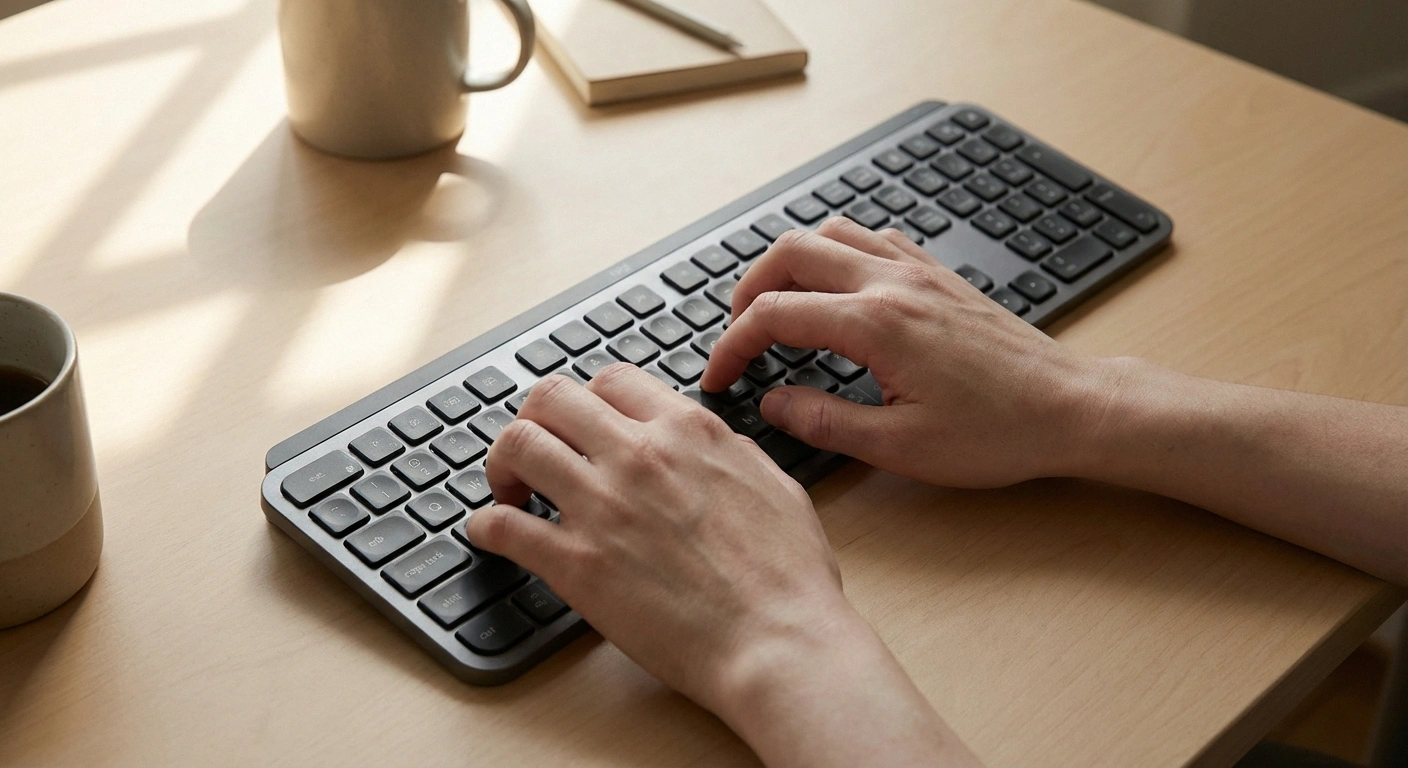
When neuropathy started stealing the feeling in my fingers, I thought my days of comfortable computer use were over. Typing felt like trying to play piano with mittens on. The mouse would slip. I'd misclick constantly. And after 20 minutes, the burning pain in my hands made me want to walk away from the screen entirely.
But I wasn't ready to give up my computer — and chances are, you aren't either. Whether you use a computer for work, staying connected with family, managing your health, or simply enjoying life, losing that ability feels like losing independence. The good news: with the right equipment, software, and techniques, you can keep computing comfortably even with significant neuropathy in your hands.
This guide covers everything I've learned — from hardware that actually helps to software tricks that eliminate strain, plus the ergonomic adjustments that make the biggest difference.
How Neuropathy Affects Computer Use
Neuropathy affects computer use in several specific ways, and understanding which ones apply to you is the first step toward finding the right solutions.
🖥️ How Does Neuropathy Affect YOUR Computer Use?
Can't feel the keys — press too hard or miss keystrokes
Hit wrong keys due to reduced finger precision
Pain or burning limits how long you can type
Difficulty gripping and controlling the mouse
Loss of tactile feedback. When you can't feel the keys under your fingers, you lose the ability to type by touch. You press too hard (because you can't tell when the key has registered) or too softly (missing keystrokes entirely). This is the most common complaint from people with neuropathy in their hands.
Reduced fine motor control. Numbness and weakness make precise movements difficult. Hitting the right key, clicking a small button, or accurately positioning a mouse cursor all require fine motor skills that neuropathy can compromise.
Pain and fatigue. Burning, tingling, or aching in the hands and fingers limits how long you can type or use a mouse. Many people find that pain increases with sustained use, forcing frequent breaks — or causing them to avoid the adaptive technology for computer use entirely.
Grip problems. If neuropathy affects your grip strength, holding and maneuvering a standard mouse becomes challenging. Dropping the mouse, losing your grip mid-scroll, or being unable to click firmly enough are common frustrations.
Keyboard Solutions That Make a Real Difference
The keyboard is where most neuropathy-related computer problems start — and where the right change can have the biggest impact. Here's what works, based on real feedback from our community and recommendations from occupational therapists.
Mechanical keyboards with tactile feedback
This is the single most recommended change by neuropathy patients who type regularly. Mechanical keyboards use individual switches under each key that provide a distinct physical “bump” and audible “click” when the key registers. This tactile and auditory feedback replaces the sensory information your fingers can no longer provide.
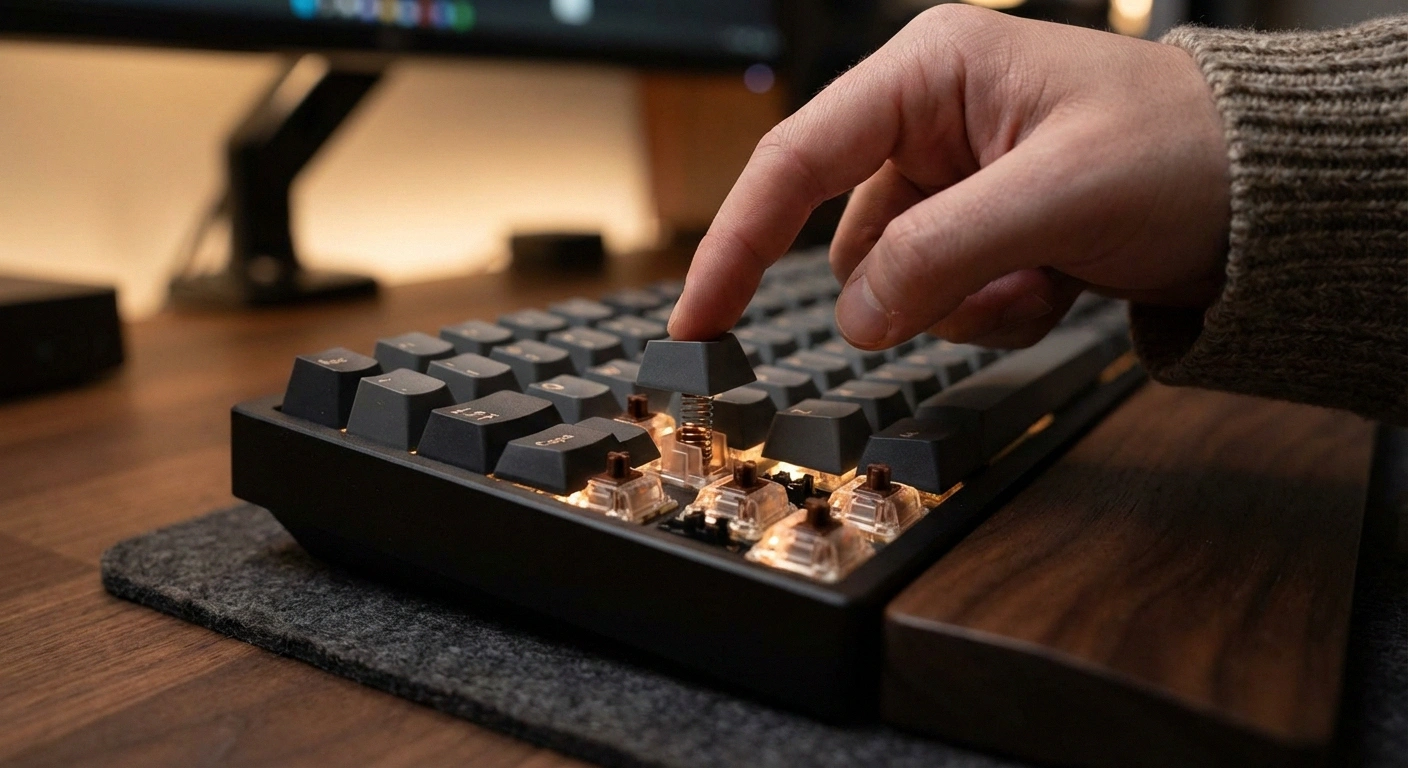
For neuropathy, look for keyboards with tactile switches (like Cherry MX Brown, Cherry MX Blue, or their equivalents). These require moderate force and provide a noticeable bump at the actuation point — you feel and hear when the keystroke registers, even with reduced finger sensation. Avoid linear switches (like Cherry MX Red), which are smooth all the way down and provide less feedback.
Brands frequently recommended in our community include Keychron (the K4 and K8 models are popular), Das Keyboard, and Logitech's mechanical lines. Full-size keyboards with number pads are generally better for neuropathy users than compact layouts, as the extra spacing between key groups reduces mistyping.
Ergonomic split keyboards
Split keyboards divide the keyboard into two halves, allowing you to position each half at the angle most comfortable for your wrists and hands. This reduces the wrist extension and ulnar deviation that standard keyboards force — positions that can worsen ulnar neuropathy and carpal tunnel symptoms.
The Microsoft Sculpt Ergonomic Keyboard is a good entry-level option. For more customization, the Kinesis Advantage360 and ZSA Moonlander allow extreme customization of key layout and split angle. These take time to learn but can dramatically reduce hand strain for heavy computer users.
Large-key and high-contrast keyboards
If reduced finger precision makes you hit the wrong keys, a keyboard with larger keys and greater spacing between them can help. These keyboards are marketed toward seniors and people with vision impairments, but they're equally useful for neuropathy patients. The larger targets mean less precision is needed. High-contrast lettering (large white or yellow letters on black keys) also helps if you've shifted from touch typing to looking at the keyboard.
Keyboard settings adjustments
Before buying new hardware, try adjusting your existing keyboard settings. Every operating system has accessibility options that can help:
Free First Steps
Windows: Settings → Accessibility → Keyboard (Sticky Keys, Filter Keys). Mac: System Settings → Accessibility → Keyboard (Sticky Keys, Slow Keys). Try these free adjustments before buying new hardware.
- Key repeat delay: Increase the delay before a key starts repeating when held down. This prevents accidental repeated characters if your fingers rest on keys too long.
- Key repeat rate: Slow this down to reduce runaway repeated characters.
- Sticky Keys: Makes key combinations (like Ctrl+C) sequential rather than simultaneous — press and release Ctrl, then press C — eliminating the need to hold two keys at once.
- Filter Keys (Windows) / Slow Keys (Mac): Adds a delay before a keystroke registers, filtering out accidental key presses from tremors or misplaced fingers.
On Windows: Settings → Accessibility → Keyboard. On Mac: System Settings → Accessibility → Keyboard. These adjustments are free and can make a surprising difference.
Mouse and Pointing Device Alternatives
If gripping and maneuvering a standard mouse is painful or difficult, you have more options than you might think. The right pointing device depends on which specific neuropathy symptoms affect you most.
Vertical ergonomic mice
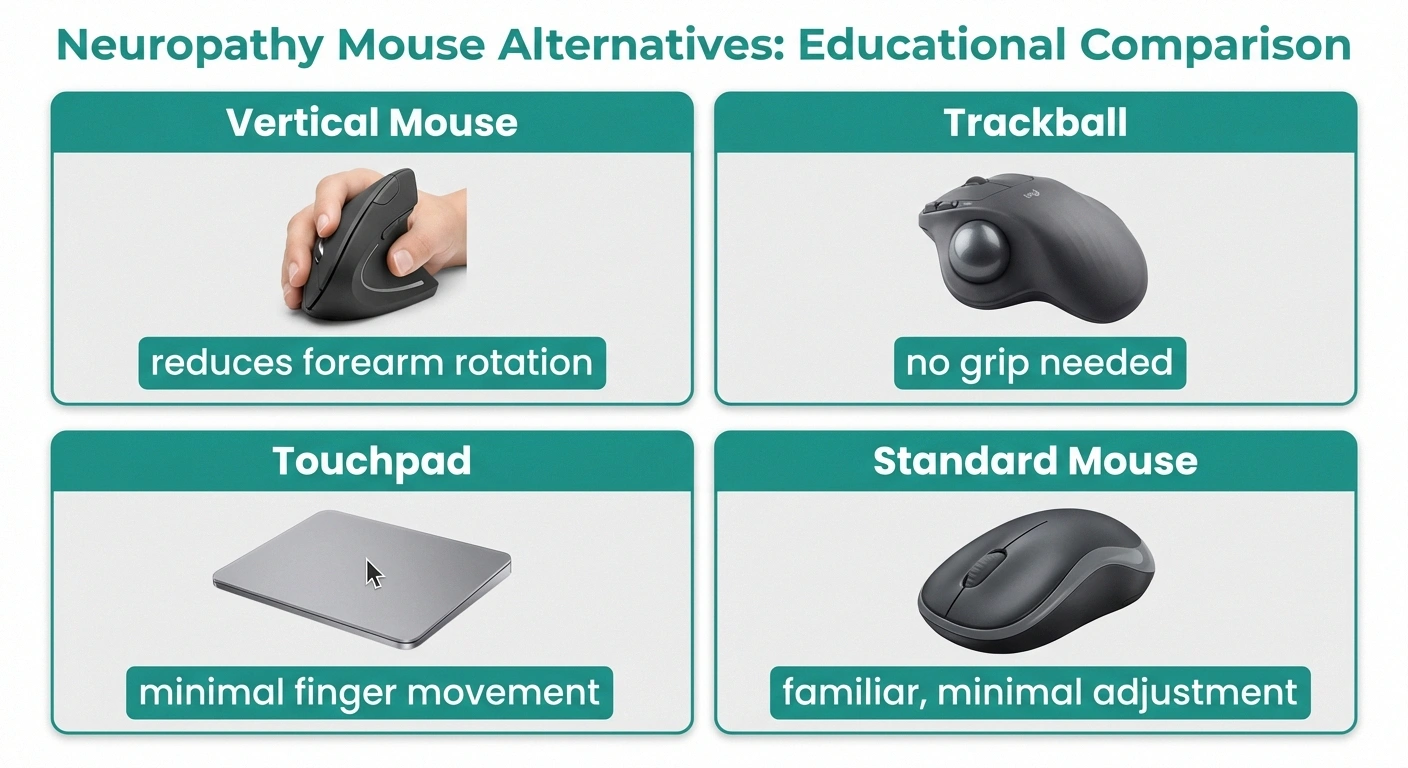
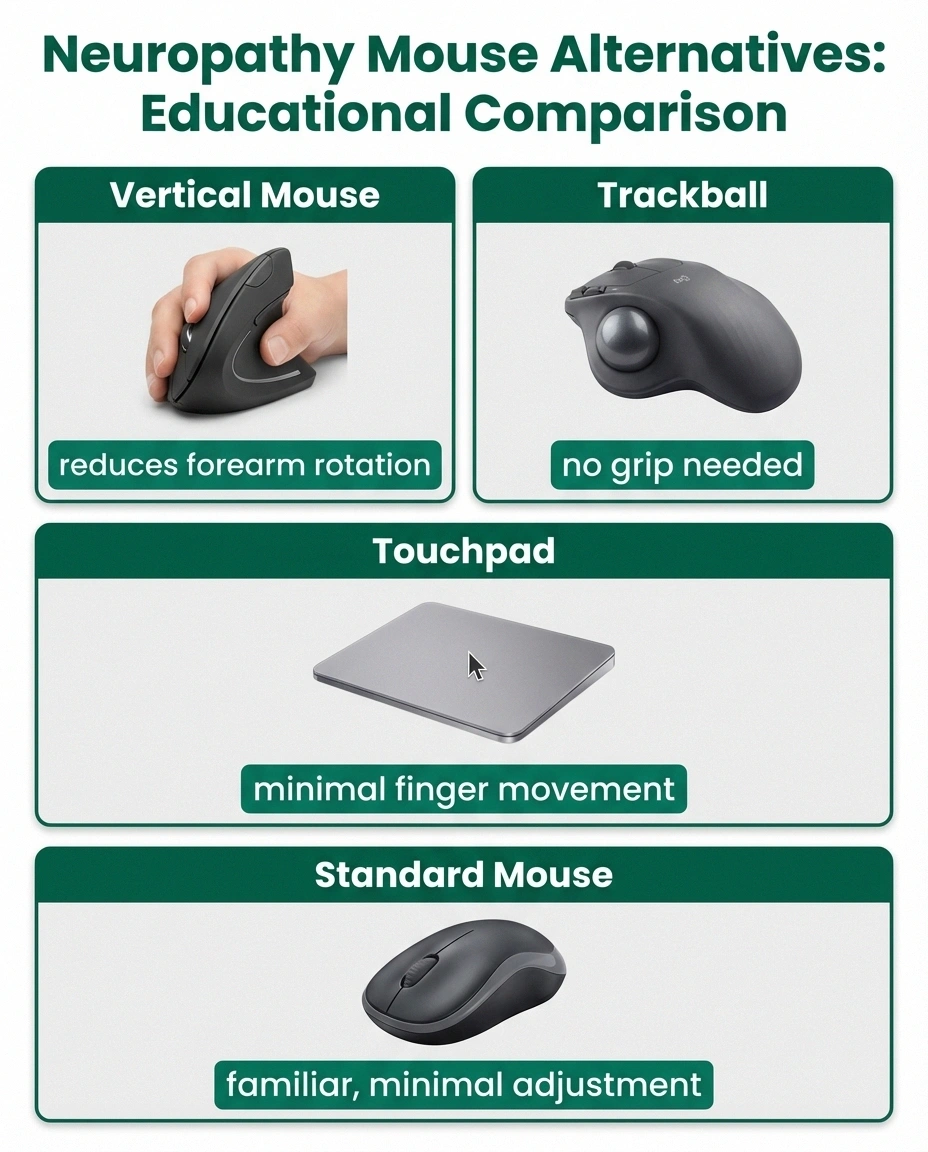
A vertical mouse positions your hand in a “handshake” position instead of the palm-down position of a standard mouse. This reduces the forearm rotation (pronation) that puts pressure on the ulnar nerve and median nerve. Many people with neuropathy find this immediately more comfortable. The Logitech MX Vertical and Anker Vertical Mouse are well-reviewed options.
Trackball mice
A trackball stays stationary — you roll the ball with your thumb or fingers to move the cursor. This eliminates the need to grip and slide the mouse across the desk, which is a major benefit for people with grip problems. The Logitech ERGO M575 (thumb trackball) and Kensington Expert Mouse (finger trackball) are popular choices. Trackballs take a few days to get used to but are often game-changers for neuropathy users.
Touchpad and gesture control
An external trackpad (like Apple's Magic Trackpad or Logitech T650) lets you use light finger swipes instead of gripping and clicking. This can be easier on hands that are painful or weak. The light-touch gestures — tap to click, two-finger scroll, pinch to zoom — require less force than traditional mouse buttons.
Mouse settings adjustments
Like keyboard settings, mouse settings can be adjusted to compensate for neuropathy:
🖱️ Vertical Mouse
Best for: Forearm pain, pronation issues
Key benefit: Natural “handshake” position reduces nerve compression
🔵 Trackball
Best for: Grip weakness, hand pain
Key benefit: No gripping or sliding — stays stationary
- Pointer speed: Increase cursor sensitivity so you need less hand movement to cover the screen.
- Click speed: Slow the double-click speed if you have trouble clicking fast enough.
- Pointer size: Make the cursor larger so it's easier to track on screen.
- Click lock: Eliminates the need to hold the mouse button during drag operations — one click starts a drag, another click ends it.
- Snap to: Automatically moves the cursor to the default button in dialog boxes, reducing the distance you need to move the mouse.
Voice Control: Your Hands-Free Alternative
When hand-based input becomes too painful or frustrating, voice control technology offers a powerful alternative. Modern speech recognition has improved dramatically and can handle most computer tasks.
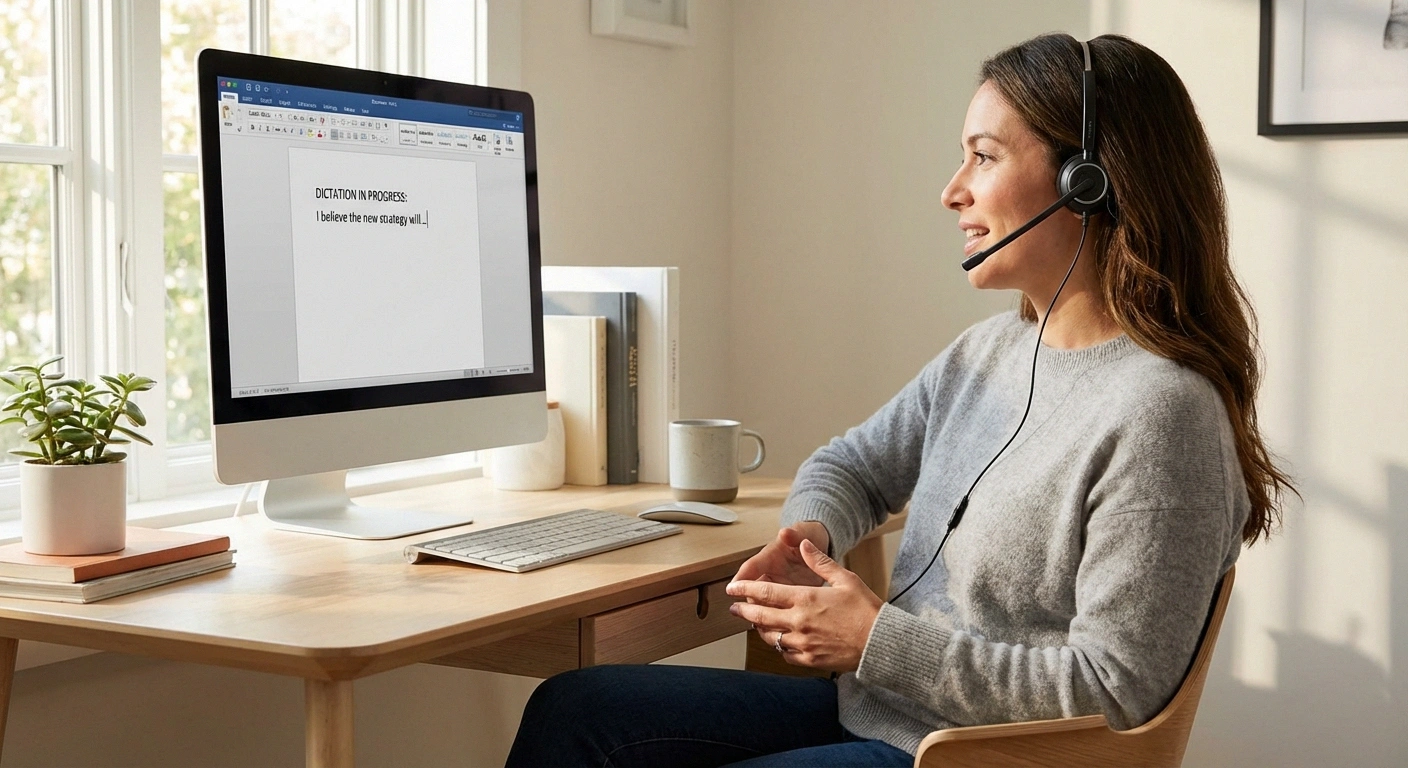
Built-in voice features
Windows Voice Typing (Win + H): Dictates text in any text field. Surprisingly accurate with modern Windows 10/11. It learns your speech patterns over time.
Mac Dictation (Fn key twice or Ctrl key twice): Apple's built-in dictation works system-wide and includes voice commands for formatting, punctuation, and cursor movement.
Voice Control (Mac): Goes beyond dictation — lets you navigate, click, scroll, and control the entire computer by voice. You can say “click save” or “scroll down” and it works.
Windows Voice Access: Microsoft's newer voice control system that overlays numbers on clickable elements, allowing full computer control by voice.
Dedicated speech recognition software
Dragon NaturallySpeaking (now Dragon Professional) remains the gold standard for professional-grade speech recognition. It handles complex dictation, custom vocabulary, and computer navigation. It's an investment (around $200-300), but for people who rely on computers for work, it can preserve your career.
Voice Control Options
Free: Windows Voice Typing (Win+H), Mac Dictation (Fn+Fn), Google Docs Voice Typing. Premium: Dragon NaturallySpeaking ($200-300) for professional-grade dictation and full computer control.
For casual use, Google Docs' built-in voice typing (Tools → Voice typing) is free and remarkably accurate. It works best for writing documents but doesn't control other applications.
Ergonomic Setup: Reducing Strain at the Source
The right equipment matters, but how you set up your workspace matters just as much. Poor ergonomics compound neuropathy symptoms. Good ergonomics can reduce pain significantly — sometimes more than new hardware.
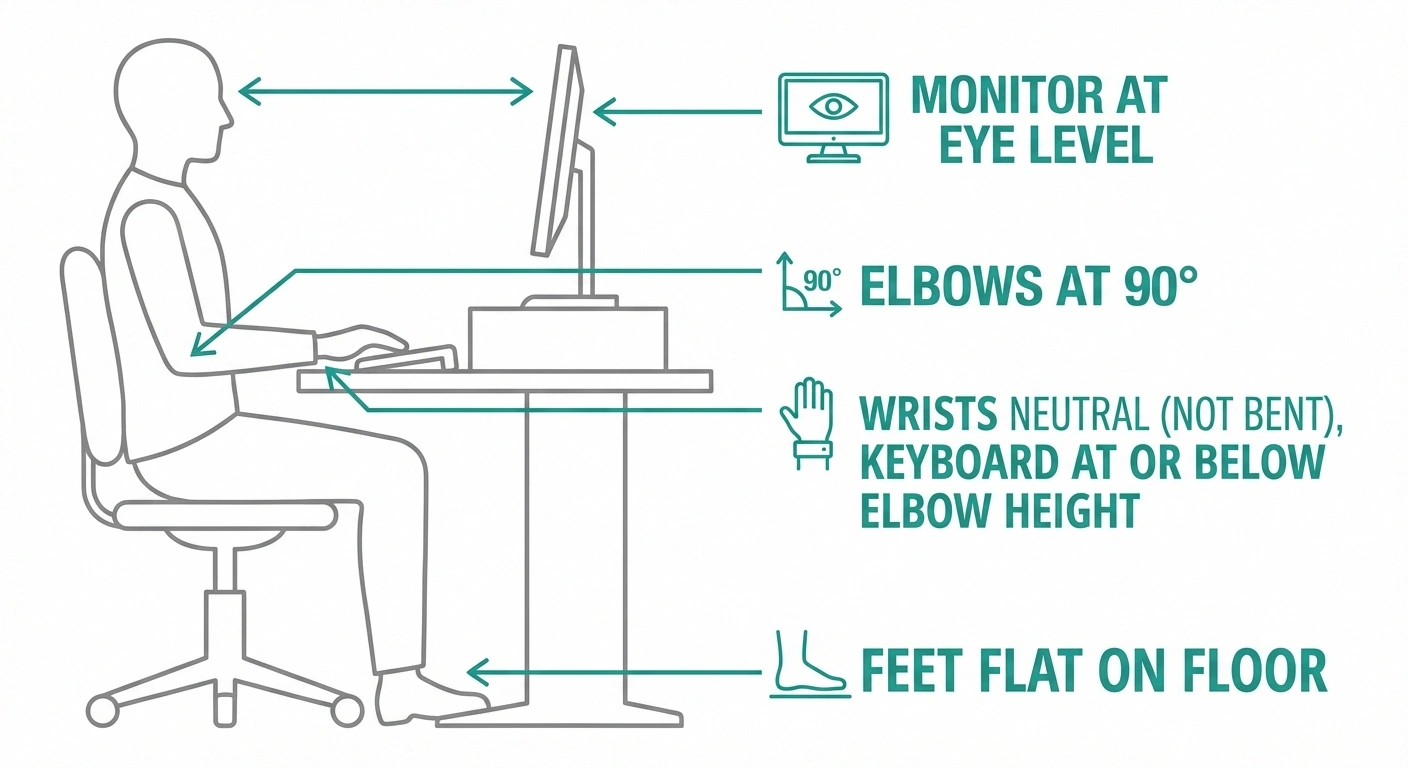
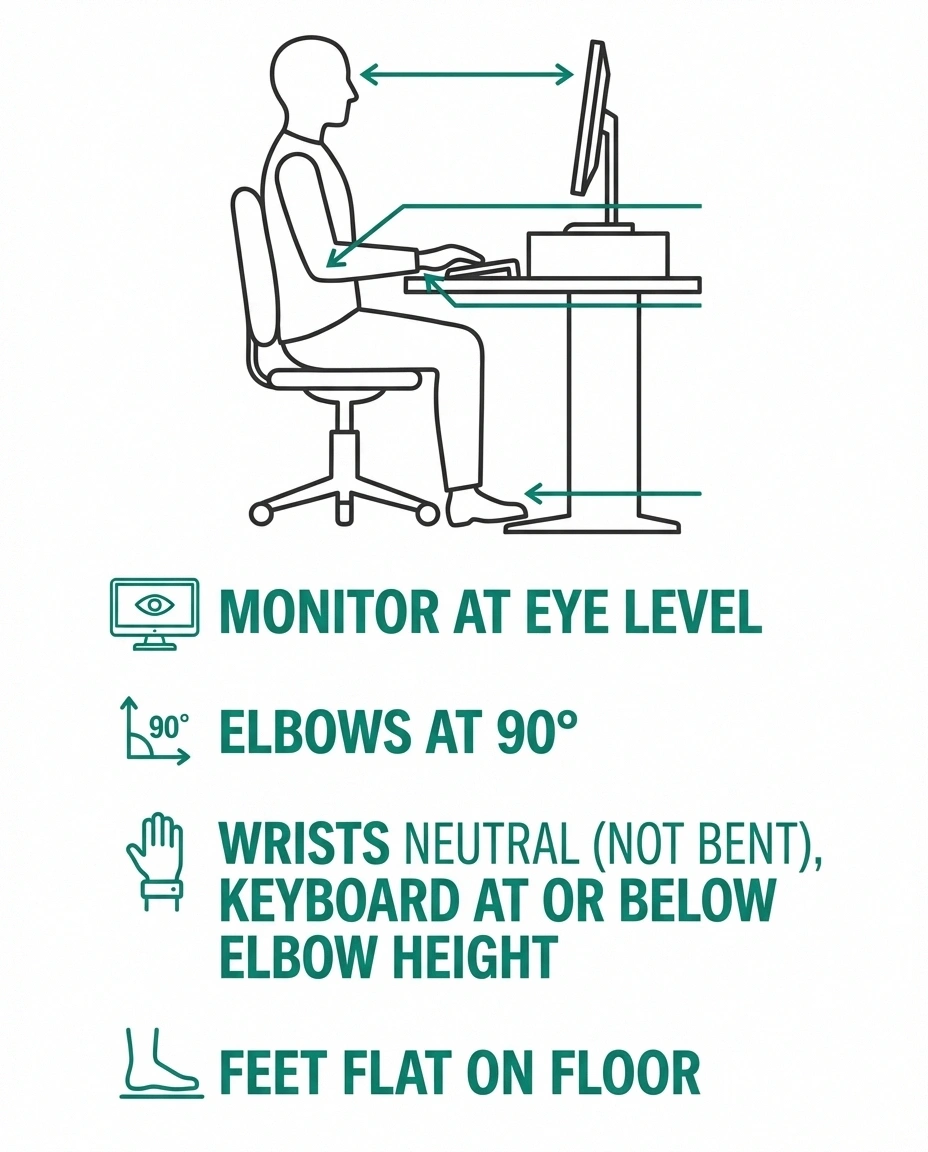
Wrist position: Your wrists should be neutral — not bent up, down, or to the side. A wrist rest can help maintain this position during typing pauses, but your wrists should actually “float” while actively typing. Resting your wrists while typing forces them into extension, which compresses the carpal tunnel.
Keyboard height and angle: The keyboard should be at or slightly below elbow height. Most keyboards have rear legs that tilt the keyboard upward — for neuropathy, try keeping it flat or even tilting the front edge slightly up (negative tilt). This keeps your wrists in a more neutral position.
Monitor position: While this doesn't directly affect hand neuropathy, poor monitor placement leads to awkward postures that create tension in the neck, shoulders, and arms — all of which can worsen hand symptoms. The top of your screen should be at or slightly below eye level, about an arm's length away.
Chair and desk height: Your elbows should be at approximately 90 degrees when typing. If your desk is too high, you'll raise your shoulders, creating tension that radiates down your arms. If it's too low, you'll flex your wrists to reach the keys.
Break Strategies That Protect Your Hands
Taking regular breaks is arguably more important than any equipment change. Neuropathy symptoms accumulate with sustained use — the first 20 minutes may feel fine, but the pain and numbness that build over an hour can take much longer to subside.

Your Break Schedule
Every 20-30 Minutes
30-second micro-break: shake hands, open/close fists, roll wrists
Every 60 Minutes
3-5 minute break: stand up, walk around, stretch hands and arms
When Pain Increases
Immediate break regardless of schedule — don't push through escalating pain
The 20-20-20 rule: Every 20 minutes, take a 20-second break and look at something 20 feet away. This basic cadence keeps you from falling into the “just five more minutes” trap that leads to flare-ups.
Micro-breaks every 20-30 minutes: Drop your hands to your sides and shake them gently. Open and close your fists several times. Roll your wrists in circles. These 30-second micro-breaks improve blood flow and reduce nerve compression.
Longer breaks every hour: Stand up, walk around, and do gentle hand and arm stretches. If your neuropathy allows, try the exercises in our neuropathy exercise guide — modified for a desk break. Even 2-3 minutes of movement can reset the pain cycle.
Use break reminder software: StretchMinder, Workrave, and Time Out are free apps that remind you to take breaks at customizable intervals. When you're focused on work, it's easy to ignore your body's signals. A popup reminder keeps you honest.
Software Shortcuts That Reduce Typing
One of the best strategies for computing with neuropathy is simply typing less. Modern software offers many ways to accomplish more with fewer keystrokes.
Text expansion tools: Programs like TextExpander, AutoHotkey (Windows), or the built-in text replacement in Mac settings let you create shortcuts that expand into full phrases. Type “addr” and it expands into your full mailing address. Type “sig” and it expands into your email signature. Over a day, these shortcuts can eliminate hundreds of keystrokes.
Autocomplete and predictive text: Most modern email clients and word processors offer autocomplete suggestions. Enable them and use Tab or Enter to accept predictions instead of typing full words. Google's Smart Compose in Gmail is particularly good at this.
Keyboard shortcuts for common actions: Learning a handful of essential shortcuts eliminates repetitive mouse movements: Ctrl+C (copy), Ctrl+V (paste), Ctrl+Z (undo), Ctrl+S (save), Alt+Tab (switch windows). These combinations are faster than reaching for the mouse — and with Sticky Keys enabled, you don't even need to press them simultaneously.
Browser extensions: Tools like Vimium let you navigate web pages entirely by keyboard, eliminating mouse use while browsing. Dark Reader reduces eye strain during long sessions. Tab groups and bookmark organization reduce the clicking needed to find what you need.
Tablet and Mobile Alternatives
For some tasks, switching to a tablet may actually be easier than adapting a traditional computer. Tablets offer several advantages for people with hand neuropathy.
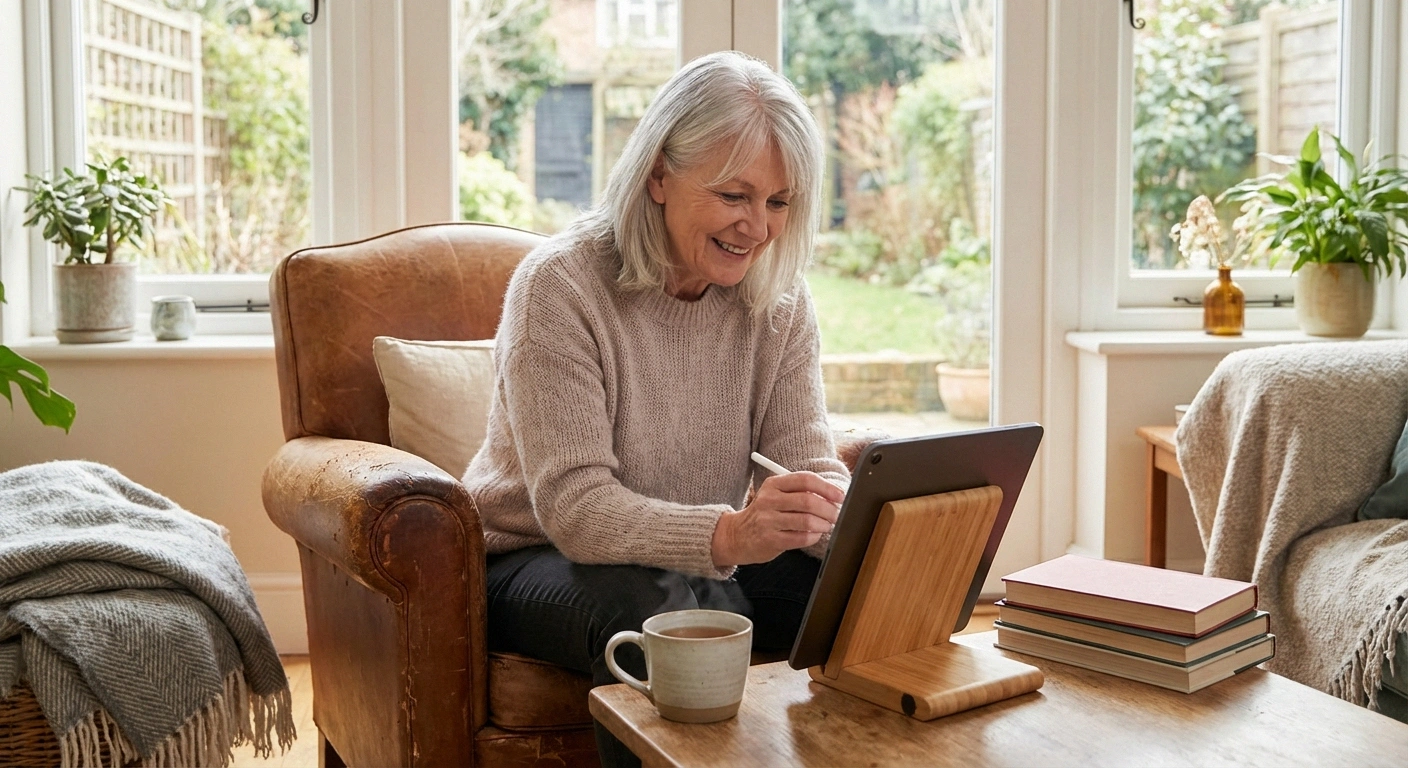
Touchscreen gestures require less precision and force than keyboard/mouse input. Scrolling, tapping, and swiping use larger motor movements than typing.
Stylus input using an Apple Pencil, Samsung S Pen, or similar stylus provides more control than fingers while being easier to grip than a mouse. You can handwrite text that converts to typed text, draw, and navigate with a single tool.
Voice assistants like Siri, Google Assistant, and Alexa can handle many tasks — sending messages, making calls, setting reminders, searching the web — entirely hands-free.
For email, social media, video calls, and web browsing, a tablet with a stand can be an excellent neuropathy-friendly alternative. For heavy document work, spreadsheets, or programming, a traditional computer with the adaptations in this guide remains the better option.
When to Ask for Professional Help
If self-help strategies aren't enough, two types of professionals specialize in exactly this problem.
Occupational therapists (OTs) are experts in adapting daily activities — including computer use — around physical limitations. An OT can assess your specific challenges, recommend customized equipment, teach you adapted typing techniques, and create a personalized plan for maintaining computer independence. Many insurance plans cover OT for neuropathy.
Assistive technology specialists focus specifically on adapting technology for people with disabilities. They can set up voice control systems, configure adaptive hardware, and find solutions you might not know exist. Your state's Assistive Technology program (search “assistive technology” plus your state name) often provides free consultations and equipment loans.
Don't wait until you've completely lost the ability to use your computer to seek help. Early intervention preserves skills and prevents the frustration spiral that leads many people to simply give up.
Frequently Asked Questions
What is the best keyboard for someone with neuropathy in their hands?
A mechanical keyboard with tactile switches is generally the best option for neuropathy users because it provides physical and auditory feedback when each key registers. This compensates for reduced finger sensation. Keyboards with Cherry MX Brown or similar tactile switches are most commonly recommended. If wrist positioning is also an issue, a split ergonomic mechanical keyboard combines both benefits.
Can voice recognition software completely replace typing?
For many tasks, yes. Modern voice recognition handles email, document writing, web browsing, and basic computer navigation well. Dragon NaturallySpeaking and the built-in voice control features of Windows and Mac can manage most daily computer use. However, tasks requiring precise cursor placement, spreadsheet editing, or specialized software may still require some hand input, even if minimal.
How often should I take breaks when using a computer with neuropathy?
Take micro-breaks every 20-30 minutes, consisting of 30 seconds to a minute of hand and wrist movement. Take longer breaks of 3-5 minutes every hour, including standing and stretching. If you notice pain or numbness increasing, take an immediate break regardless of the schedule. Break reminder software can help you maintain a consistent break schedule.
Will using a computer make my neuropathy worse?
Using a computer with poor ergonomics and no breaks can aggravate neuropathy symptoms, particularly if you have carpal tunnel syndrome or ulnar neuropathy alongside peripheral neuropathy. However, computer use with proper ergonomic setup, appropriate equipment, and regular breaks does not cause neuropathy to progress. The underlying nerve damage is caused by the disease, not by computer use itself.
Are there free tools that can help with typing if I have neuropathy?
Yes. Every major operating system includes free accessibility features specifically designed to help with typing difficulties. Windows offers Sticky Keys, Filter Keys, and Voice Access. Mac offers Sticky Keys, Slow Keys, Voice Control, and Dictation. Browser-based tools like Google Docs voice typing are also free. These built-in tools should be your first step before purchasing specialized hardware or software.
Can occupational therapy help with computer use problems from neuropathy?
Occupational therapy is one of the most effective resources for adapting computer use around neuropathy limitations. An occupational therapist can assess your specific challenges, recommend customized equipment and software solutions, teach adapted typing and mousing techniques, and create a personalized workspace setup. Many insurance plans cover occupational therapy for neuropathy-related functional limitations.
Staying Connected, Staying Independent
Neuropathy changes how you use a computer, but it doesn't have to end your relationship with technology. The adaptations in this guide — from mechanical keyboards to voice control to simple software settings — can keep you productive, connected, and independent.
Start with the free adjustments: accessibility settings, break reminders, and voice typing. If those aren't enough, invest in hardware that addresses your specific challenges. And if you're still struggling, get professional help from an occupational therapist before frustration wins.
Your computer is a lifeline to the world. Don't let neuropathy cut that connection. Browse all our living with neuropathy guides for more strategies to maintain independence and quality of life.
About the Author